Windows PowerShell
Windows PowerShell
By Bruce Payette
57,923 Downloads · Refcard 5 of 185 (see them all)
Download
FREE PDF
The Essential Windows PowerShell Cheat Sheet
Windows PowerShell
ABOUT WINDOWS POWERSHELL
Why PowerShell? Why Now? PowerShell was designed to do for Windows what the UNIX shells do for UNIX: provide a powerful, well-integrated command-line experience for the operation system. Unfortunately since Windows is mostly managed through objects (WMI, COM and .NET) this required creating a new kind of shell. So why create it now? As Windows moves off the desktop and into server farms or application servers like print, DNS and LDAP services, command-line automation becomes a fundamental requirement.
This refcard covers starting and using Windows PowerShell, including the syntax for all statements, operators and other elements of the language. Also included are examples of how to use .NET, COM, ADSI and WMI objects from PowerShell. Finally, it includes tips and tricks"short examples showing how to perform common tasks from PowerShell.
Getting Started with PowerShell
PowerShell is freely available through the Microsoft Windows Update Service packaged as an optional update for Windows XP SP2, Windows Vista and Windows Server 2003. It is also included with Windows Server 2008 as an optional component. Once installed, it can be started from the Start menu or simply by running "powershell.exe". Basic things you need to know:
- Use the "exit" keyword to exit the shell
- Ctrl-C will interrupt the current task returning you to the prompt
- A command can be spread over multiple lines and the interpreter will prompt for additional input. The line continuation character is the back-quote "`" (also called the back-tick).
- To get help about a command you can do "help command". The help command by itself will give you a list of topics.
- The help command supports wildcards so "help get-*" will return all of the commands that start with "get-".
- You can also get basic help on a command by doing "commandName -?" like "dir -?"
- As well as cmdlet help, there is a collection of general help topics prefixed with "about_". You can get a list of these topics by going help about_*
Command-Line editing in Powershell: Command-line Editing works just like it does in cmd.exe: use the arrow keys to go up and down, the insert and delete keys to insert and delete characters and so on.
| Keyboard sequence | Editing operation |
|---|---|
| Left/Right Arrows | Move the editing cursor left and right through the current command line. |
| Ctrl-Left Arrow, Ctrl-Right Arrow | Move the editing cursor left and right a word at a time. |
| Home | Move the editing cursor to the beginning of the current command line. |
| End | Move the editing cursor to the end of the current command line. |
| Up/Down Arrows | Move up and down through the command history. |
| Insert Key | Toggles between character insert and character overwrite modes. |
| Delete Key | Deletes the character under the cursor. |
| Backspace Key | Deletes the character behind the cursor. |
| F7 | Pops up command history in a window on the console. Use the up and down arrows to select a command then Enter to execute that command. |
| Tab | Does command line completion. PowerShell completes on filenames, cmdlet names (after the dash), cmdlet parameter names and property and method names on variables. |
The Language
PowerShell parses text in one of two modes"command mode, where quotes are not required around a string and expression mode where strings must be quoted. The parsing mode is determined by what"s at the beginning of the statement. If it"s a command, then the statement is parsed in command mode. If it"s not a command then the statement is parsed in expression mode as shown:
PS (1) > echo 2+2 Hi there # command mode " starts with "echo" command
2+2 Hi there
PS (2) > 2+2; "Hi there" # expression mode starts with 2
4
Hi there
PS (3) > echo (2+2) Hi (echo there) # Mixing and matching modes with brackets)
4 Hi there
Commands: There are 4 categories of commands in PowerShell:
| Cmdlets | These are built-in commands in the shell, written in a .NET language like C# or Visual Basic. Users can extend the set of cmdlets by writing and loading PowerShell snap-ins. |
| Functions | Functions are commands written in the PowerShell language that are defined dynamically. |
| Scripts | Scripts are textfiles on disk with a .ps1 extension containing a collection of PowerShell commands. |
| Applications | Applications (also canned native commands) are existing windows programs. These commands may be executables, documents for with there are associated editors like a word file or they may be script files in other languages that have interpreters registered and that have their extensions in the PATHTEXT environment variable. |
Pipelines: As with any shell, pipelines are central to the operation of PowerShell. However, instead of returning strings from external processes, PowerShell pipelines are composed of collections of commands. These commands process pipeline objects one at a time, passing each object from pipeline element to pipeline element. Elements can be processed based on properties like Name and Length instead of having to extract substrings from the objects.
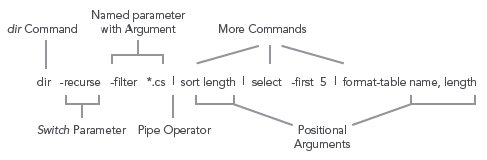
PowerShell Literals: PowerShell has the usual set of literal values found in dynamic languages: strings, numbers, arrays and hashtables.
Numbers: PowerShell supports all of the signed .NET number formats. Hex numbers are entered as they are in C and C# with a leading "0x" as in 0xF80e. Floating point includes Single and Double precisions and Decimal. Banker"s rounding is used when rounding values. Expressions are widened as needed. A unique feature in PowerShell are the multiplyer suffixes which make it convenient to enter larger values easily:
| Multiplier Suffix | Multiplication Factor | Example | Equivalent Value | .NET Type |
|---|---|---|---|---|
| kb or KB | 1024 | 1KB | 1024 | System.Int32 |
| mb or MB | 1024*1024 | 2.2mb | 2306867.2 | System.Double |
| gb or GB | 1024*1024*1024 | 1Gb | 1073741824 | System.Int32 |
Strings: PowerShell uses .NET strings. Single and Double quoted strings are supported. Variable substitution and escape sequence processing is done in double-quoted strings but not in single quoted ones as shown:
PS (1) > $x="Hi"
PS (2) > "$x bob`nHow are you?"
Hi bob
How are you?
PS (3) > "$x bob`nHow are you?"
$x bob`nHow are you?
The escape character is backtick instead of backslash so that file paths can be written with either forward slash or backslash.
Variables: In PowerShell, variables are organized into namespaces. Variables are identified in a script by prefixing their names with a "$" sign as in "$x = 3". Variable names can be unqualified like $a or they can be name-space qualified like: $variable:a or $env:path. In the latter case, $env:path is the environment variable path. PowerShell allows you to access functions through the function names space: $function:prompt and command aliases through the alias namespace alias:dir
Arrays: Arrays are constructed using the comma "," operator. Unless otherwise specified, arrays are of type Object[]. Indexing is done with square brackets. The "+" operator will concatenate two arrays.
PS (1) > $a = 1, 2, 3
PS (2) > $a[1]
2
PS (3) > $a.length
3
PS (4) > [string] ($a + 4, 5)
1 2 3 4 5
Because PowerShell is a dynamic language, sometimes you don"t know if a command will return an array or a scalar. PowerShell solves this problem with the @( ) notation. An expression evaluated this way will always be an array. If the expression is already an array, it will simple be returned. If it wasn"t an array, a new single-element array will be constructed to hold this value.
HashTables: The PowerShell hashtable literal produces an instance of the .NET type System.Collections.Hashtable. The hashtable keys may be unquoted strings or expressions; individual key/value pairs are separated by either newlines or semicolons as shown:
PS (1) > $h = @{a=1; b=2+2
>> ("the" + "date") = get-date}
>>
PS (2) > $h
Name Value
---- -----
thedate 10/24/2006 9:46:13 PM
a 1
b 4
PS (3) > $h["thedate"]
Tuesday, October 24, 2006 9:46:13 PM
PS (4) > $h.thedate
Tuesday, October 24, 2006 9:46:13 PM
@{ a=1; b=2}
Types
[typename]
Type Conversions: For the most part, traditional shells only deal with strings. Individual tools would have to interpret (parse) these strings themselves. In PowerShell, we have a much richer set of objects to work with. However, we still wanted to preserve the ease of use that strings provide. We do this through the PowerShell type conversion subsystem. This facility will automatically convert object types on demand in a transparent way. The type converter is careful to try and not lose information when doing a conversion. It will also only do one conversion step at a time. The user may also specify explicit conversions and, in fact, compose those conversions. Conversions are typically applied to values but they may also be attached to variables in which case anything assigned to that variable will be automatically be converted.
Here"s is an example where a set of type constraints are applied to a variable. We want anything assigned to this variable to first be converted into a string, then into an array of characters and finally into the code points associated with those characters.
PS (1) > [int[]][char[]][string]$v = @() # define variable
PS (2) > $v = "Hello" # assign a string
PS (3) > [string] $v # display the code points
72 101 108 108 111
101
108
108
111
PS (4) > $v=2+2 # assign a number
PS (5) > $v # display the code points
52
PS (6) > [char] 52 # cast it back to char
Flow-control Statements: PowerShell has the usual collection of looping and branching statements. One interesting difference is that in many places, a pipeline can be used instead of a simple expression.
if Statement:
if ($a "eq 13) { "A is 13} else {"A is not 13"}
The condition part of an if statement may also be a pipeline.
if (dir | where {$_.length "gt 10kb}) {
"There were files longer than 10kb"
}
while Loop:
$a=1; while ($a "lt 10) { $a }
$a=10 ; do { $a } while (--$a)
for Loop:
for ($i=0; $i "lt 10; $i++) {
"5 * $i is $(5 * $i)"
}
foreach Loop:
foreach ($i in 1..10) { "`$i is $i" }
foreach ($file in dir "recurse "filter *.cs sort length)
{
$_.Filename
}|
foreach Cmdlet: This cmdlet can be used to iterate over collections of operators (similar to the map() operation found in many other languages like Perl.) There is a short alias for this command "%". Note that the $_ variable is used to access the current pipeline object in the foreach and where cmdlets.
1..10 foreach { $_ * $_ }
$t = 0; dir | foreach { $t += $_ } ; $t
1..10 | %{ "*" * $_ }|
where Cmdlet: This cmdlet selects a subset of objects from a stream based on the evaluation of a condition. The short alias for this command is "?".
1..10 where {$_ -gt 2 "and $_ -lt 10}
get-process | where {$_.handlecount "gt 100 }|
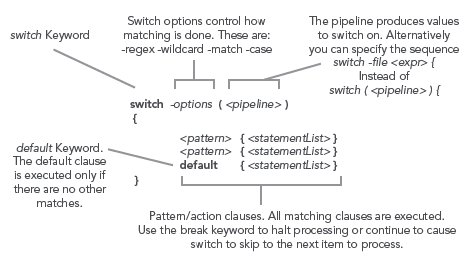
switch Statement: The PowerShell switch statement combines both branching and looping. It can be used to process collections of objects in the condition part of the statement or it can be used to scan files using the "file option.
Operators
PowerShell has a very rich set of operators for working with numbers, strings, collections and objects. These operators are shown in the following tables.
Arithmetic operators: The arithmetic operators work on numbers. The "+" and "*" operators also work on collections. The "+" operator concatenates strings and collections or arrays. The "*" operator will duplicate a collection the specified number of times.
| Operator | Description | Example | Result |
|---|---|---|---|
| + | Add two numbers together | 2+4 | 6 |
| Add two strings together | "Hi" + "there" | "Hi There" | |
| Concatenate two arrays | 1,2,3 + 4,5,6 | 1,2,3,4,5,6 | |
| * | Multiply two values | 2 * 4 | 8 |
| Repeat the string "a" 3 times. | "a" * 3 | "aaa" | |
| Concatenate the array twice | 1,2 * 2 | 1,2,1,2 | |
| - | Subtract one value from another | 6-2 | 4 |
| / | Divide two values | 6/2 | 3 |
| Divide two values, auto-convert to double | 7/4 | 1.75 | |
| % | Returns the remainder from a division operation | 7/4 | 3 |
Assignment Operators: PowerShell has the set of assignment operators commonly found in C-derived languages. The semantics correspond to the binary forms of the operator.
| Operator | Example | Equivalent | Description |
|---|---|---|---|
| = | $a= 3 $a,$b,$c =1,2,3 |
Sets the variable to the specified value. Multiple assignment is supported. | |
| += | $a += 2 | $a = $a + 2 | Performs the addition operation in the existing value then assign the result back to the variable. |
| -= | $a -= 13 | $a = $a " 13 | Performs the subtraction operation in the existing value then assign the result back to the variable. |
| *= | $a *= 3 | $a = $a * 3 | Multiplies the value of a variable by the specified value or appends to the existing value. |
| /= | $a /= 3 | $a = $a / 3 | Divides the value of a variable by the specified value |
| %= | $a %= 3 | $a = $a % 3 | Divides the value of a variable by the specified value and assigns the remainder (modulus) to the variable |
Comparison Operators: Most of the PowerShell operators are the same as are usually found in C-derived languages. The comparison operators, however, are not. To allow the ">" and "<" operators to be used for redirection, a different set of characters had to be chosen so PowerShell operators match those found in the Bourne shell style shell languages. (Note: when applying a PowerShell operator against collection, the elements of the collection that compare appropriately will be returned instead of a simple Boolean.)
| Operator | Description | Example | Result |
|---|---|---|---|
| -eq "ceq "ieq | Equals | 5 "eq 5 | $true |
| -ne "cne "ine | Not equals | 5 "ne 5 | $false |
| -gt "cgt "igt | Greater than | 5 "gt 3 | $true |
| -ge "cge "ige | Greater than or equal | 5 "ge 3 | $true |
| -lt "clt "ilt | Less than | 5 "lt 3 | $false |
| -le "cle "ile | Less than or equals | 5 "le 3 | $false |
| -contains -ccontains -icontains | The collection on the left hand side contains the value specified on the right hand side. | 1,2,3 "contains 2 | $true |
| -notcontains-cnotcontains -inotcontains | The collection on the left hand side does not contain the value on the right hand side. | 1,2,3 "notcontains 2 | $false |
Pattern Matching Operators: PowerShell supports two sets of pattern-matching operators. The first set uses regular expressions and the second uses wildcard patterns (sometimes called globbing patterns).
| Operator | Description | Example | Result |
|---|---|---|---|
| -match "cmatch -imatch | Do a pattern match using regular expressions | "Hello" "match "[jkl]" | $true |
| -notmatch -cnotmath -inotmatch | Do a regex pattern match, return true if the pattern doesn"t match. | "Hello" "notmatch "[jkl]" | $false |
| -replace -creplace -ireplace | Do a regular expression substitution on the string on the right hand side and return the modified string. Backreferences are indicated in the replacement string using the sequence $n when n is the corresponding parenthetical expression in the pattern. | "Hello" "replace "ello","i" "Hello" -replace "(ll)","+$1+" |
"Hi" "He+ll+o" |
| Delete the portion of the string matching the regular expression. | "abcde" "replace "bcd" | "ae" | |
| -like "clike "ilike | Do a wildcard pattern match | "one" "like "o*" | $true |
| -notlike "cnotline -inotlike | Do a wildcard pattern match, true if the pattern doesn"t match. | "one" "notlike "o*" | $false |

Copy console input into a file:
[console]::In.ReadToEnd() > foo.txt
Setting the Shell Prompt:
function prompt { "$PWD [" + $count++ + "]" }
Setting the Title Bar Text:
$host.UI.RawUI.WindowTitle = "PATH: $PWD"
Regular Expression Patterns: PowerShell regular expressions are implemented using the .NET regular expressions.
| Metacharacter | Description | Example |
|---|---|---|
| \w | Matches any "word" character, approximately equivalent to [a-zA-Z0-9] | "abcd defg" -match "\w+" |
| \W | Matches any non-word character | "abcd defg" -match "\W+" |
| \s | Matches any whitespace character | "abcd defg" -match "\s+" |
| \S | Matches any non-whitespace character. | "abcd defg" -match "\s+" |
| \d \D | Matches any digit or non-digit respectively | 12345 -match "\d+" |
| {n} {n,} {n,m} | Quantifiers matching n through m instances of a pattern.. If m is not specified, it matches at least n instances. If one n is specified, it must match exactly n instances. | "abc" -match "\w{2,3}" |
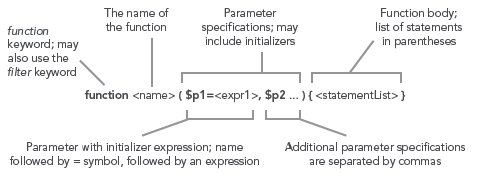
PowerShell Functions: Functions can be defined with the function keyword. Since PowerShell is a shell, every statement in a PowerShell function may return a value. Use redirection to $null to discard unnecessary output. The following diagram shows a simple function definition.
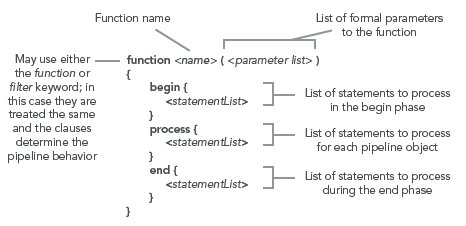
Advanced Functions: functions can also be defined like cmdlets with a begin, process and end clause for handling processing in each stage of the pipeline.
Unary Operators:
| Operator | Example | Result | Description |
|---|---|---|---|
| = | - (2+2) | -4 | Sets the variable to the specified value. Multiple assignment is supported. |
| + | + "123" | 123 | Performs the addition operation in the existing value then assign the result back to the variable. |
| -- | --$a ; $a-- | Depends on the current value of the variable. | Pre and post decrement operator |
| ++ | ++$a; $a++ | Depends on the current value of the variable. | Pre and post increment |
| [<type>] | [int] "0x123" | 291 | Divides the value of a variable by the specified value |
| , | , (1+2) | 1-element array containing the value of the expression. | Divides the value of a variable by the specified value and assigns the remainder (modulus) to the variable |
Basic Tasks - Text and Files
In general, the easiest way to get things done in PowerShell is with cmdlets. Basic file operations are carried out with the "core" cmdlets. These cmdlets work on any namespace. This means that you can use them to manipulate files and directories but can also use them to list the defined variables by doing
dir variables:
or remove a function called "junk" by doing:
del function:/junk
| Cmdlet Name | PowerShell Standardized Alias | cmd Command | UNIX sh Command | Description |
|---|---|---|---|---|
| Get-Location | gl | pwd | pwd | Get the current directory |
| Set-Location | sl | cd, chdir | cd, chdir | Change the current directory |
| Copy-Item | cpi | copy | cp | Copy files |
| Remove-Item | ri | del, rd | rm, rmdir | Remove a file or directory. PowerShell has no separate command for removing directories as opposed to file. |
| Move-Item | mi | move | mv | Move a file. |
| Rename-Item | rni | Rn | ren | Rename a file. |
| Set-Item | si | Set the contents of a file. | ||
| Clear-Item | cli | Clear the contents of a file. | ||
| New-Item | ni | Create a new empty file or directory. The type of object is controlled by the -type parameter. | ||
| Mkdir | md | mkdir | Mkdir is implemented as a function in PowerShell so that users can create directories without having to specify "type directory | |
| Get-Content | gc | type | cat | Send the contents of a file to the output stream. |
| Set-Content | sc | Set the contents of a file. UNIX and cmd.exe have no equivalent. Redirection is used instead. The difference between Set-Content and Out-File is discussed in detail in Chapter 10 of Windows PowerShell in Action. |
I/O Redirection
| Operator | Example | Results | Description |
|---|---|---|---|
| > | dir > out.txt | Contents of out.txt are replaced. | Redirect pipeline output to a file, overwriting the current contents |
| >> | dir >> out.txt | Contents of out.txt are appended to. | Redirect pipeline output to a file, appending to the existing content. |
| 2> | dir nosuchfile.txt 2> err.txt | Contents of err.txt are replaced by the error messages | Redirect error output to a file, overwriting the current contents |
| 2>> | dir nosuchfile.txt 2>> err.txt | Contents of err.txt are appended with the error messages | Redirect error output to a file, overwriting the current contents |
| 2>&1 | dir nosuchfile.txt 2>&1 | The error message is written to the output. | The error messages are written to the output pipe instead of the error pipe. |
Searching Through Text: The fastest way to search through text and files is to use the select-string cmdlet as shown:
select-string Username *.txt "case # case-sensitive search for Username
dir "rec "filter *.txt select-string # case-insensitive search
# through a set of files
dir "rec "filter *.cs |
select-string "list Main # only list the first match|
The Select-String cmdlet is commonly aliased to "grep" by UNIX users.
Formatting and Output: by default the output of any expression that isn"t redirected will be displayed by PowerShell. The default display mode can be overridden using the formatting cmdlets:
| Cmdlet | Description | Example |
|---|---|---|
| Format-Table | Formats a set of properties into a table | dir | format-table name, length |
| Format-List | Displays properties 1 per line in a list. | dir | format-list * |
| Format-Wide | Displays a single property in multiple columns | dir | format-wide |
| Format-Custom | Complex formatter | dir | format-custom |
Output is also handled by a set of cmdlets that send the output to different locations.
| Cmdlet | Description | Example |
|---|---|---|
| Out-File | Writes formatted text to a file | dir | out-file "encoding unicode foo.txt |
| Out-Host | Writes formatted text to the screen | dir | out-host -pag |
| Out-Null | Discards all output (equivalent to > $null) | dir | out-null |
| Out-Printer | Sends formatted output to the printer. | cat report.ps | out-printer |
| Out-String | Formats input as strings and writes them to the output pipe | dir | out-string | where {$_.match "x"} |

Getting and Setting Text Colors: PS (1) > $host.PrivateData
ErrorForegroundColor : Red
ErrorBackgroundColor : Black
WarningForegroundColor : Yellow
WarningBackgroundColor : Black
DebugForegroundColor : Yellow
DebugBackgroundColor : Black
VerboseForegroundColor : Yellow
VerboseBackgroundColor : Black
ProgressForegroundColor : Yellow
ProgressBackgroundColor : DarkCyan
Types and Objects
Unlike most scripting languages, the basic object model for PowerShell is .NET which means that instead of a few simple built-in types, PowerShell has full access to all of the types in the .NET framework. Since there are certain common types that are used more often than others, PowerShell includes shortcuts or type accelerators for those types. The set of accelerators
is a superset of the type shortcuts in C#. (Note: a type literal in Powershell is specified by using the type name enclosed in square brackets like [int] or [string].
| Type Alias | Corresponding .NET Type | Example |
|---|---|---|
| [int] | System.Int32 | 1 -15 1kb 0x55aa -15 |
| [long] | System.Int64 | 10000000000 |
| [string] | System.String | "Hello`nthere" "hi" |
| [char] | System.Char | [char] 0x20 |
| [bool] | System.Boolean | $true $false |
| [byte] | System.Byte | [byte] 13 |
| [double] | System.Double | 1.2 1e3mb -44.00e16KB |
| [decimal] | System.Decimal | 12.0d 13D |
| [float] | System.Single | [float] 1.0 |
| [single] | System.Single | same as float |
| [regex] | System.Text.RegularExpressions.Regex | [regex] "^[a-z]+" |
| [array] | System.Xml.XmlDocument | [array] 22 |
| [xml] | System.Management.Automation.ScriptBlock | [xml] "<tag>Hi there</tag>" |
| [scriptblock] | System.Management.Automation.SwitchParameter | { param($x,$y) $x+$y } |
| [switch] | System.String | function f ([switch] $x) { "x is $x" } |
| [hashtable] | System.Collections.Hashtable | @{a=1; b=2*3; c = dir | sort length } |
| [psobject] | System.Management.Automation.PSObject | new-object psobject |
| [type] | System.Type | [type] "int" |
Operators For Working With Types
| Operator | Example | Results | Description |
|---|---|---|---|
| -is | $true "is [bool] | $true | True if the type of the left hand side matches the type of the right hand side |
| $true -is [object] | $true | This is always true " everything is an object except $null | |
| $true -is [ValueType] | $true | The left hand side is an instance of a .NET value type. | |
| "hi" -is [ValueType] | $false | A string is not a value type, it"s a reference type. | |
| "hi" "is [object] | $true | But a string is still an object. | |
| 12 "is [int] | $true | 12 is an integer | |
| 12 "is "int" | $true | The right hand side of the operator can be either a type literal or a string naming a type. | |
| -isnot | $true "isnot [string] | $true | The object on the left-hand is not of the same type as the right hand side. |
| $true "isnot [object] | $true | The null value is the only thing that isn"t an object. | |
| -as | "123" -as [int] | 123 | Takes the left hand side and converts it to the type specified on the right-hand side. |
| 123 "as "string" | "123" | Turn the left hand side into an instance of the type named by the string on the right. |
Accessing Instance Members: as is the case with most object oriented languages, instance members (fields, properties and method) are accesses through the dot "." operator.
"Hi there".length
"Hi there".SubString(2,5)
The dot operator can also be used with an argument on the right hand side:
"Hi there".("len" + "th")
Methods can also be invoked indirectly:
$m = "Hi there".substring
$m.Invoke(2,3)
Static methods are invoked using the "::" operator with an expression that evaluates to a type on the left-hand side and a member on the right hand side
[math]::sqrt(33)
$m = [math]
$m::pow(2,8)
Working With Collections: Foreach-Object, Where-Object
The .NET Framework
Loading Assemblies:
[void][reflection.assembly]::LoadWithPartialName
("System.Windows.Forms")
Using Windows Forms to do GUI Programming from PowerShell:
$form = new-object Windows.Forms.Form
$form.Text = "My First Form"
$button = new-object Windows.Forms.Button
$button.text="Push Me!"
$button.Dock="fill"
$button.add_click({$form.close()})
$form.controls.add($button)
$form.Add_Shown({$form.Activate()})
$form.ShowDialog()

Working With Date and Time
Use the Get-Date cmdlet to get the current date.
$now = get-date; $now
Do the same thing using the use static method on System.DateTime
$now = [datetime]::now ; $now
Get the DateTime object representing the beginning of this year using a cast.
$thisYear = [datetime]"2006/01/01"
Get the day of the week for today
$now.DayOfWeek
Get the total number of days since the beginning of the year.
($now-$thisyear).TotalDays
Get the total number of hours since the beginning of the year.
($now-$thisyear).TotalHours
Get the number of days between now and December 25th for this year.
(([datetime] "12/25/2006")-$now).TotalDays
Get the day of the week it occurs on:
([datetime] "12/25/2006").DayOfWeek
COM (Component Object Model)
Along with .NET, PowerShell also lets you work with COM object. This is most commonly used as the Windows automation mechanism. The following example shows how the Microsoft Word automation model can be used from PowerShell:
Listing: Get-Spelling Script" this script uses Word to spell check a document
if ($args.count -gt 0)
{ #1
@"
Usage for Get-Spelling:
Copy some text into the clipboard, then run this script. It will display the Word spellcheck tool that will let you correct the spelling on the text you"ve selected. When you"re done it will put the text back into the clipboard so you can paste back into the original document.
"@
exit 0
}
$shell = new-object -com wscript.shell
$word = new-object -com word.application
$word.Visible = $false
$doc = $word.Documents.Add()
$word.Selection.Paste()
if ($word.ActiveDocument.SpellingErrors.Count -gt 0)
{
$word.ActiveDocument.CheckSpelling()
$word.Visible = $false
$word.Selection.WholeStory()
$word.Selection.Copy()
$shell.PopUp( "The spell check is complete, " +
"the clipboard holds the corrected text." )
}
else
{
[void] $shell.Popup("No Spelling Errors were detected.")
}
$x = [ref] 0
$word.ActiveDocument.Close($x)
$word.Quit()

Tokenizing a Stream Using Regular Expressions:
The "match operator will only retrieve the first match from a string. Using the [regex] class, it"s possible to iterate through all of the matches. The following example will parse simple arithmetic expressions into a collection of tokens:
$pat = [regex] "[0-9]+\+|\-|\*|/| +"
$m = $pat.match("11+2 * 35 -4")
while ($m.Success) {
$m.value
$m = $m.NextMatch()
}|
WMI (Windows Management Infrastructure)
The other major object model used in PowerShell is WMI"Windows Management Infrastructure. This is Microsoft"s implementation of the Common Instrumentation Model or CIM. CIM is an industry standard created by Microsoft, HP, IBM and many other computer companies with the intent of coming up with a common set of management abstractions. WMI is accessed in PowerShell through the Get-WMIObject cmdlet and through the [WMI] [WMISearcher] type accelerators. For example, to get information about the BIOS on your computer, you could do:
PS (1) > (Get-WmiObject win32_bios).Name
v3.20
ADSI (active directory)
Support for active directory is accomplished through type accelerators. A string can be cast into an ADSI (LDAP) query and then used to manipulate the directory as shown:
$domain = [ADSI] `
>> "LDAP://localhost:389/dc=NA,dc=fabrikam,dc=com"
PS (2) > $newOU = $domain.Create("OrganizationalUnit", "ou=HR")
PS (3) > $newOU.SetInfo()
PS (5) > $ou = [ADSI] `
>> "LDAP://localhost:389/ou=HR,dc=NA,dc=fabrikam,dc=com"
>>
PS (7) > $newUser.Put("title", "HR Consultant")
PS (8) > $newUser.Put("employeeID", 1)
PS (9) > $newUser.Put("description", "Dog")
PS (10) > $newUser.SetInfo()
PS (12) > $user = [ADSI] ("LDAP://localhost:389/" +
>> "cn=Dogbert,ou=HR,dc=NA,dc=fabrikam,dc=com")
>>
Building Custom Objects in Powershell
PowerShell has no language support for creating new types. Instead this is done through a series of commands that allow you to add members (properties, fields and methods) to existing object. Here"s an example:
PS (1) > $a = 5 # assign $a the integer 5
PS (2) > $a.square()
Method invocation failed because [System.Int32] doesn"t contain a method named "square".
At line:1 char:10
+ $a.square( <<<< )
PS (3) > $a = 5 add-member -pass scriptmethod square {$this * $this}
PS (4) > $a
5
PS (5) > $a.square()
25
PS (6) > $a.gettype().Fullname
System.Int32|
Working With XML Data: PowerShell directly supports XML. XML documents can be created with a simple cast and document elements can be accessed as though they were properties.
PS (1) > $d = [xml] "<a><b>1</b><c>2</c></a>"
PS (2) > $d.a.b
1
PS (3) > $d.a.c
2
Building Custom Objects in PowerShell
Errors and Debugging: The success or failure status of the last command can be determined by checking $?. A command may also have set a numeric code in the $LASTEXITCODE variables. (This is typically done by external applications.)
PS (11) > "exit 25" > invoke-exit.ps1
PS (12) > ./invoke-exit
PS (13) > $LASTEXITCODE
The default behavior when an error occurs can be controlled globally with the $ErrorActionPreference variable or, for a single command, with the -ErrorAction Parameter.
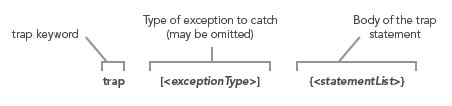
The trap Statement: will catch any exceptions thrown in a block. The behavior of the trap statement can be altered with the break and continue statements.
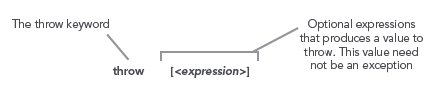
The throw Statement: along with the trap statement, there is a throw statement. This statement may be used with no arguments in which case a default exception will be constructed. Alternatively, an arbitrary value may be thrown that will be automatically wrapped in a PowerShell runtime exception.

The Format Operator
The PowerShell format operator is a wrapper around the .NET String.Format method. It allows you to do very precise formatting:
"0x{0:X} {1:hh} {2,5}|{3,-5}|{4,5}" -f 255, (get-date), "a","b","c"|


Comments
Ninja Assassin replied on Tue, 2008/06/03 - 11:13am
There appears to be a type in the "Arithmetic operators" section, specifically regarding the modulus operator in the table.
The text in the "Example" column is "7/4", with an entry in the "Result" column of "3" -- wouldn't you want to have the "Example" column contain "7%4"?
ying tao replied on Wed, 2009/05/13 - 7:06pm
mratzlaff ratzlaff replied on Thu, 2009/05/14 - 1:19pm
in response to:
ying tao
Bill Thompson replied on Thu, 2009/10/08 - 7:26am
Jim Katz replied on Tue, 2009/10/27 - 11:01am
Greg Palmer replied on Mon, 2010/02/15 - 11:39pm
in response to:
Jim Katz
Powershell 2 behaviour is different with the echo behaviour with a new line per argument. However, the examples work as shown if Write-Host is substituted for echo.
Peter Czarnecki replied on Sun, 2010/05/02 - 12:31pm
Trevor Robertson replied on Tue, 2011/03/22 - 10:10am
Darren Martin replied on Thu, 2012/06/14 - 3:30am
in response to:
Trevor Robertson
Wow, these are really great sample you have shared, I downloaded some and I will see the outcome.
iphone keyboard