Objective-C for the iPhone and iPad
By Ben Ellingson and Matthew McCullough
24,921 Downloads · Refcard 110 of 185 (see them all)
Download
FREE PDF
The Essential Objective-C for iOS Cheat Sheet
Objective-Cfor the iPhone and iPad
An Introduction to the Language and tools
Objective-C is the primary language used to create applications for Apple’s Mac OS X and iOS (iPhone and iPad) platforms. Objective-C was created by Brad Cox and Tom Love in the early 1980s. In 1988, Objective-C was licensed by NeXT, a company founded and helmed by Steve Jobs during his absence from Apple. Apple acquired NeXT in 1996, bringing Objective-C to the Macintosh platform.
Objective-C is an object oriented superset of ANSI C. Its object syntax is derived from Smalltalk. It supports single inheritance, implementation of multiple interfaces via the @protocol syntax, and the redefinition and augmentation of (open) classes via categories. Apple’s iPhone SDK for the iOS mobile operating system offers developers a rich set of Objective-C APIs. This free SDK, which includes the Xcode IDE, is used to create applications for the iPhone, iPad, and iPod Touch.
The Syntax
Class Declaration
Objective-C classes typically include an interface .h and an implementation .m pair of files. The .h file contains property and method declarations. The .m file contains method implementations.
Example .h interface file
@interface Speaker : NSObject {
NSInteger *ID;
NSString *name;
}
@property NSInteger *ID;
@property(nonatomic,retain) NSString *name;
- (void) doSomething: (NSString *) value anotherValue: (int) value2;
@end
Example .m implementation file
#import “Speaker.h”
@implementation Speaker
@synthesize ID,name;
- (void) doSomething: (NSString *) value anotherValue: (int) value2 {
// do something
}
@end
Inheritance
Class inheritance is specified in the .h interface file with the syntax: @interface <MyClass> : <ParentClass>. The following example tells the compiler that the Employee class inherits from (extends) the Person class.
// Employee.h file
@interface Employee : Person {
}
@end

Interfaces
Objective-C interfaces are created using the @protocol declaration. Any class can implement multiple interfaces. Interfaces are typically declared in a .h header file and can be included via #import statements in the .h header file of other classes.
// Mappable.h: Declare the Mappable @protocol
@protocol Mappable
- (double) latitude;
- (double) longitude;
@end
// Location.h: Specify that Location class implements the Mappable
// @protocol
#import “Mappable.h”
@interface Location : NSObject <Mappable> {
}
@end
// Location.m: Provide implementations for the Mappable methods
@implementation Location
- (double) latitude {
return 46.553666;
}
- (double) longitude {
return -87.40551;
}
@end
Primitive Data Types
As a superset of ANSI C, Objective-C supports its same primitive data types.
| int | Integral numbers without decimal points |
| float | Numbers with decimal points |
| double | Same as float with twice the accuracy or size |
| char | Store a single character such as the letter ‘a’ |
| BOOL | Boolean values with the constants YES or NO |
Common Object Data Types
| NSObject | Root class of the object hierarchy |
| NSString | String value |
| NSArray | Collection of elements, fixed size, may include duplicates |
| NSMutableArray | Variable sized array |
| NSDictionary | Key-value pair collection |
| NSMutableDictionary | Variable sized key-value pair collection |
| NSSet | Unordered collection of distinct elements |
| NSData | Byte buffer |
| NSURL | URL resource |
Instance Variables
Class instance variables are declared within a curly braced {} section of the .h file.
// Book.h: Variables declared in a header file
@interface Book : NSObject {
NSString *title;
NSString *author;
int pages;
}
@end
Notice that the object variable declarations are preceded by * symbol. This indicates that the reference is a pointer to an object and is required for all object variable declarations.
Dynamic Typing
Objective-C supports dynamic typing via the id keyword.
NSString *name1 = @”Bob”;
// name2 is a dynamically typed NSString object
id name2 = @”Bob”;
if ([name1 isEqualToString:name2]) {
// do something
}
Methods
Methods are declared in the .h header file and implemented in the .m implementation file.
// Book.h: Declare methods in the header file
@interface Book : NSObject {
}
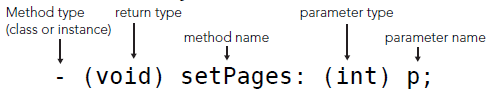
- (void) setPages: (int) p;
- (int) pages;
@end
// Book.m: Implement methods in the implementation file
@implementation Book
- (void) setPages: (int) p {
pages = p;
}
- (int) pages {
return pages;
}
@end
Method Declaration Syntax

Method Invocation Syntax
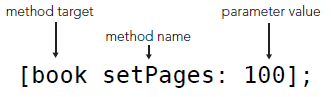
Method invocations are written using square bracket [] notation.
Using Dot Notation Method Invocation
Objective-C 2.0 added the ability to invoke property accessor methods (getters/setters) using “.” notation.
// Using dot notation calls the book instance’s setAuthor method
book.author = @”Herman Melville”;
// equivalent to
[book setAuthor: @”Herman Melville”];
Multi Parameter Methods
Multi-Parameter methods are more verbose than other languages. Each parameter includes both an external name, data type, and a local variable name. The external parameter name becomes a formal part of the method name.
// declare a method with multiple parameters
- (void) addBookWithTitle: (NSString *) aTitle andAuthor: (NSString *)
anAuthor;
// invoke a method with multiple parameters
[self addBookWithTitle: @”Moby Dick” andAuthor: @”Herman Melville”];
Self and Super Properties
Objective-C objects include a self property and a super property. These properties are mutable and can be assigned in an advanced technique called “swizzling”. Most commonly, the self attribute is used to execute a method on the enclosing object.
[self setAuthor: @”Herman Melville”];
// Invoke methods on the “super” property to execute parent class
// behavior. a method that overrides a parent class method will likely call
// the parent class method
- (void) doSomething: (NSString *)value {
[super doSomething: value];
// do something derived-class specific
}
Properties using @property and @synthesize
Objective-C 2.0 added property declaration syntax in order to reduce verbose coding of getter and setter methods.
// use of @property declaration for the title variable is equivalent to
// declaring a “setTitle” mutator and “title” accessor method.
@interface Book : NSObject {
NSString *title;
}
@property (retain, nonatomic) NSString *title;
@end
// use the @synthesize declaration in the .m implementation file
// to automatically implement setter and getter methods.
@implementation Book
@synthesize title, author; //Multiple variables
@synthesize pages; //Single variable
@end
Multiple variables may be included in a single @synthesize declaration. Alternatively, a class may include multiple @synthesize declarations.
@property Attributes
Property attributes specify behaviors of generated getter and setter methods. Attribute declarations are placed in parenthesis () after the @property declaration. The most common values used are (retain, nonatomic). retain indicates that the [retain] method should be called on the newly assigned value object. See the memory management section for further explanation. nonatomic indicates that the assignment operation does not check for thread access protection, which may be necessary in multi-threaded environments. readonly may be specified to indicate the property’s value can not be set.
Object Initialization
Object instances are created in two steps. First, with a call to alloc and second, with a call to init.
// example of 2 step object initialization
Book *book = [[Book alloc] init];
// equivalent to
Book *book2 = [Book alloc];
book2 = [book init];
In order to perform specific object initialization steps, you will often implement the init or an initWith method. Notice the syntax used around the self property in the following example. This is a standard init pattern found in Objective-C. Also notice the method uses a dynamic id return type.
// Event.m: Implementation overrides the “init” method to assign a default
// date value
@implementation Event
- (id) init {
self = [super init];
if (self != nil) {
self.date = [[NSDate alloc] init];
}
return self;
}
@end
Class Constructors
Classes often include constructor methods as a convenience. The method type is + to indicate that it is a class (static) method.
// Constructor method declaration
+ (Book *) createBook: (NSString *) aTitle withAuthor: (NSString *)
anAuthor;
// Invoke a class constructor
Book *book2 = [Book createBook: @”Moby Dick” withAuthor: @”Herman
Melville”];
#import Statements
#import statements are required to declare the classes and frameworks used by your class. #import statements can be included at the top of both .h header and .m implementation files.
// import a class
#import “Book.h”
// import a framework
#import <MapKit/MapKit.h>
Control Flow
// basic for loop
for (int x=0; x < 10; x++) {
NSLog(@”x is: %d”,x);
}
// for-in loop
NSArray *values = [NSArray arrayWithObjects:@”One”,@”Two”,@”Three”,nil];
for(NSString *value in values) {
// do something
}
// while loop
BOOL condition = YES;
while (condition == YES) {
// doSomething
}
// if / else statements
BOOL condition1 = NO;
BOOL condition2 = NO;
if (condition1) {
// do something
} else if(condition2) {
// do other thing
} else {
// do something else
}
// switch statement
int x = 1;
switch (x) {
case 1:
// do something
break;
case 2:
// do other thing
break;
default:
break;
}
Strings
Objective-C string literals are prefixed with an “@” symbol (e.g. @”Hello World”). This creates instances of the NSString class; instead of C language CFStrings.
// create a string literal via the “@” symbol
NSString *value = @”foo bar”;
NSString *value2 = [NSString stringWithFormat:@”foo %@”,@”bar”];
// string comparison
if ([value isEqualToString:value2]) {
// do something
}
NSURL *url = [NSURL URLWithString:@”http://www.google.com”];
NSString *value3 = [NSString stringWithContentsOfURL:url];
NSString *value4 = [NSString stringWithContentsOfFile: @”file.txt”];
NSLog / NSString Formatters
Formatters are character sequences used for variable substitution in strings.
%@ for objects
%d for integers
%f for floats
// Logs “Bob is 10 years old”
NSLog(@”%@ is %d years old”, @”Bob”, 10);
Data Structures
Using NSArray
// Create a fixed size array. Notice that nil termination is required
NSArray *values = [NSArray arrayWithObjects:@”One”,@”Two”,nil];
// Get the array size
int count = [values count];
// Access a value
NSString *value = [values objectAtIndex:0];
// Create a variable sized array
NSMutableArray *values2 = [[NSMutableArray alloc] init];
[values2 addObject:@”One”];
Using NSDictionary
NSDictionary *di = [NSDictionary dictionaryWithObjectsAndKeys:
@”One”,[NSNumber numberWithInt:1],
@”Two”,[NSNumber numberWithInt:2],nil];
NSString *one = [di objectForKey: [NSNumber numberWithInt:1]];
NSMutableDictionary *di2 = [[NSMutableDictionary alloc] init];
[di2 setObject:@”One” forKey:[NSNumber numberWithInt:1]];
Memory Management
Objective-C 2.0 includes garbage collection. However, garbage collection is not available for iOS apps. iOS apps must manage memory by following a set of object ownership rules. Each object has a retain count which indicates the number of objects with an ownership interest in that object. Ownership of an object is automatically taken when you call a method beginning with alloc, prefixed with new, or containing copy. Ownership is manually expressed by calling the retain method. You relinquish object ownership by calling release or autorelease.
When an object is created it has a retain count of 1 When the “retain” message is sent to an object, the retain count is incremented by 1 When the “release” message is sent to an object, the retain count is decremented by 1 When the retain count reaches 0, it is deallocated
// alloc sets the retain count to 1
Book *book = [[Book alloc] init];
// do something...
// Release message decrements the retain count,
// Retain count reaches 0. Book will be deallocated
[book release];
dealloc Method
When an object’s retain count reaches 0, it is sent a dealloc message. You will provide implementations of the dealloc method, which will call release on the instances retained variables. Do not call dealloc directly.
// Book.m: Implement release of member variables
- (void) dealloc
{
[title release];
[author release];
[super dealloc];
}
Autorelease Pools
An autorelease pool (NSAutoreleasePool) contains references to objects that have received an autorelease message. When the autorelease pool is deallocated, it sends a release message to all objects in the pool. Using an autorelease pool may simplify memory management; however, it is less fine grained and may allow an application to hold onto more memory than it really needs. Be watchful of which types and size of objects you use with autorelease.
// call autorelease on allocated instance to add it to the autorelease pool
Book *book = [[[Book alloc] init] autorelease];
Categories
Categories are a powerful language feature which allows you to add methods to an existing class without subclassing. Categories are useful to extend the features of existing classes and to split the implementation of large classes into several files. Categories are not subclasses. Generally, do not use methods in a category to extend existing methods except when you wish to globally erase and redefine the original method. Categories can not add instance variables to a class.
// BookPlusPurchaseInfo.h adds purchase related methods to the Book class
#import “Book.h”
@interface Book (PurchaseInfo)
- (NSArray *) findRetailers;
@end
// BookPlusPurchaseInfo.m implements the purchase related methods
#import “BookPlusPurchaseInfo.h”
@implementation Book (PurchaseInfo)
- (NSArray *) findRetailers {
return [NSArray arrayWithObjects:@”Book World”,nil];
}
@end
// call a method defined in the BookPlusPurchaseInfo category
Book *book = [Book createBook:@”Moby Dick” withAuthor:@”Herman Melvile”];
NSArray *retailers = [book findRetailers];
Selectors
Selectors create method identifiers using the SEL datatype. A value can be assigned to a SEL typed variable via the @selector() directive. Selectors, along with NSObject’s method performSelector: withObject: enable a class to choose the desired message to be invoked at runtime.
// Execute a method using a SEL selector and the performSelector method
id target = [[Book alloc] init];
// Action is a reference to the “doSomething” method
SEL action = @selector(doSomething);
// The message sender need not know the type of target object
// or the message that will be called via the “action” SEL
[target performSelector: action withObject:nil ];
Working With Files
iOS applications have access to files in an app-specific home directory. This directory is a sand-boxed portion of the file system. An app can read and write files within this its own hierarchy, but it can not access any files outside of it.

// Get the path to a iOS App’s “Documents” directory
NSString *docDir = [NSSearchPathForDirectoriesInDomains(NSDocumentDirectory,
NSUserDomainMask, YES) lastObject];
// List the contents of a directory
NSFileManager *fileManager = [NSFileManager defaultManager];
NSArray *files = [fileManager contentsOfDirectoryAtPath:docDir error:nil];
for (NSString *file in files) {
NSLog(file);
}
// Create a directory
NSString *subDir = [NSString stringWithFormat:@”%@/MySubDir”,docDir];
[fileManager createDirectoryAtPath:subDir attributes:nil];
// Does the file exist?
NSString *filePath = [NSString stringWithFormat:@”%@/MyFile.txt”,docDir];
BOOL exists = [fileManager fileExistsAtPath: filePath];
Tools
Xcode
The IDE included in the iOS SDK is named Xcode. It is the primary tool in the suite of utilities that ship with the SDK. Xcode has a long history but has been given a dramatic set of feature additions in the modern iPhone and iPad releases, including detection of common user-coded memory leaks and quick-fixing of other syntax and coding mistakes.
Plain text editors and command line Make files can be used to produce iOS applications. However, Xcode offers compelling features such as syntax highlighting and code completion. These features make writing Objective-C in the Xcode IDE a delight and a favorite of developers everywhere.

Once the code is in a valid-syntax state, compile it by choosing Build ➡ Build from the menus, or > B. If there are code errors, they will appear as a yellow or red icon in the lower right corner of the IDE. Clicking on the icon will reveal a panel detailing the warnings and errors.

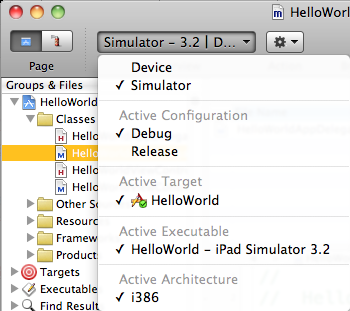
Deploying an application to the simulator has two simple steps. First, choose the Simulator target from the main Xcode toolbar. Building and Deploying can be done in one seamless step by pressing the Command and Enter keys. The simulator will receive the compiled application and launch it.

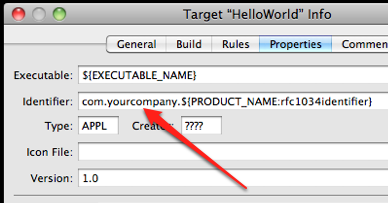
To deploy to an iPhone or iPad, first select Device from the aforementioned toolbar menu. Second, right click on the element beneath the Target node of the Groups and Files tree and choose Get Info. Choose the Properties tab and ensure the Identifier matches the name or pattern you established with Apple for your Provisioning Profile at http://developer.apple.com/iphone

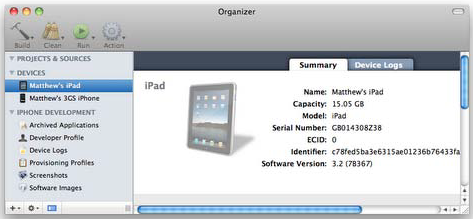
Organizer
The Organizer window provides a list of favorite projects, enumerates your attached iOS devices, streams the current
device console log to screen and displays details of past crash logs. It can be opened from Xcode via ![]()

Debugging
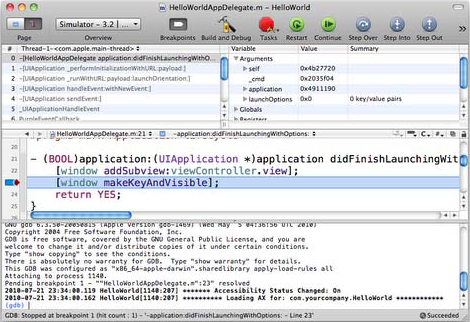
The Xcode platform provides a robust debugger and supplementary mechanisms for stepping through code. Breakpoints are easily set by single clicking in the gutter next to any line of code. A blue arrow indicates a breakpoint is set and active.

Once a breakpoint is hit, variables can be inspected and
the stack examined via the key combination
The
bottommost panel is called the console, and is where all logging output, written via calls such as NSLog(@“My counter
is: %d”, myIntCount), is routed.
- Double-click the name of any node beneath the Executables group of an Xcode project.
- In the dialog that opens, click the Arguments tab.
- In the lower “Variables to be set” region, click the + button and create a new variable named “NSZombieEnabled” with its value set to “YES”.
Interface Builder
A tool as powerful as Xcode is Interface Builder. Its name clearly expresses its use for designing Objective-C NIBs and XIBs, which are the binary and XML form of user interface definition files on the Mac, iPhone, and iPad.
NIBs, though graphically designed, actually instantiate the objects declared via the tool when called upon via code. Accordingly, it may help to think of IB (as it is known in the community) primarily as a class-instance designer and property value setter.
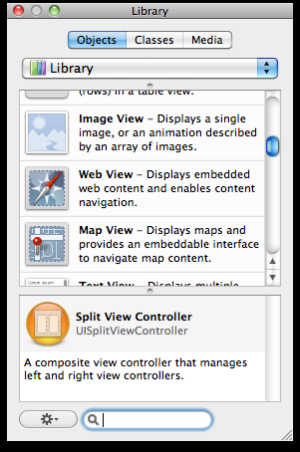
New elements can be added to a design canvas in a dragand-
drop WYSIWYG approach via the Library panel, which
can be accessed via the
key combination. After
saving changes, the design’s behavior can be immediately
tested through the Simulate Interface command, which can be
invoked via
+ R.

Simulator
The iPhone and iPad Simulator is another distinct application in the iPhone SDK that communicates and integrates with the Xcode IDE and with Interface Builder. In the Xcode section, we saw how to deploy our application to the Simulator, which both installs the application and launches it.
While the Simulator offers a great desktop testing experience that requires no purchase of hardware, it has a few shortcomings such as the lack of a camera, gyroscope, or GPS facilities. The lack of camera is somewhat mitigated by a supply of several stock photos in the Photo application. The harsh absence of a gyroscope is minimized only by the shake and rotate gestures possible through the Hardware menu. And last, the omission of a true GPS simulator is performed by GPS calls always resolving to 1 Infinite Loop, Cupertino, CA, USA.
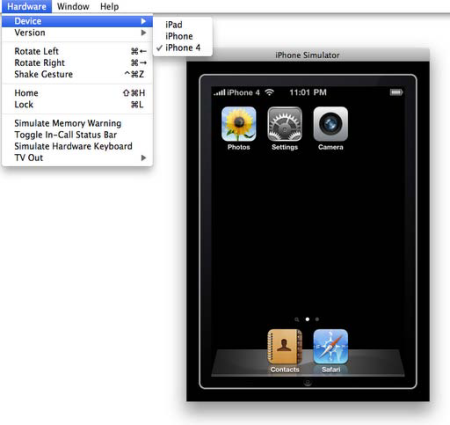
The iPhone Simulator offers iPad, iPhone and iPhone 4 simulation modes. The modes are toggled via the Hardware ➡ Device menu.

The Simulator ships with a limited number of core applications; namely, the Photos, Settings, Camera, Contacts and Safari programs. These are the applications that offer API connectivity from the source code of your application. For a broader set of programs and more realistic mobile horsepower CPUs, testing on an actual iOS device is critical. Commercial apps that you’ve purchased from the iTunes App Store cannot be installed on the Simulator for DRM reasons and the vast difference in CPU architecture of x86 desktops and ARM mobile devices.
Xcode Keyboard Shortcuts
Common XCode Shortcuts
| toggle between .h and .m file | |
| quickly open a file via search dialog | |
| build | |
| build and run | |
| clean the build | |
| go to console view | |
| go to project view | |
| show / hide upper right pane | |
| show / hide all but the active document window | |
| while in file editor - show / navigate list of recent files | |
| while in file editor - show / navigate list of class methods | |
| build and debug | |
| debugger continue | |
| open quick documentation for class at mouse cursor |
Unit Testing and Code Coverage
Currently, the unit testing tools for Objective-C are less mature than those of other languages. XCode currently includes the OCUnit unit testing framework. OCUnit tests are coded similarly to those of xUnit tests in languages such as Java. The Google Toolbox for Mac provides several useful enhancements to OCUnit and is the testing solution currently recommended by ThoughtWorks for the iOS platform. Complementing OCUnit is OCMock, an Objective-C implementation of mock objects. CoverStory can be used in concert with OCUnit and OCMock to check the code coverage of your tests.
Resources
SDK
Apple Developer Programs - http://developer.apple.com/
iOS SDK - http://developer.apple.com/iphone/index.action
Testing
Google Toolbox for Mac - http://code.google.com/p/google-toolbox-for-mac/
OCMock - http://www.mulle-kybernetik.com/software/OCMock/
CoverStory - http://code.google.com/p/coverstory/
Blogs, Videos, Books
WWDC 2010 Session Videos - http://developer.apple.com/videos/wwdc/2010/ Objective-C Basics -
http://en.wikibooks.org/wiki/Cocoa_Programming/Objective-C_basics iPhone Development Wiki - http://iphonedevwiki.net/index.php/Main_Page The Objective-C Programming Language -
http://developer.apple.com/mac/library/documentation/Cocoa/Conceptual/ObjectiveC/ Bookmarks - http://delicious.com/matthew.mccullough/objectivec