To illustrate how easy it is to build an application that melds graphics, text, animation, and media, we will start with a simple tutorial. The goal will be to write an application that:
- Loads and displays an image from the internet
- Displays and animates a verse of poetry
- Declaratively mixes in graphic effects
- Plays media asynchronously
For the JFXPoetry theme, we will use “Pippa’s Song,” a wellknown excerpt from Robert Browning’s Pippa Passes.
Loading an Image on the Stage
Stage and Scene are the building blocks of almost every JavaFX program. A Stage can either be represented as a Frame for desktop applications, a rectangle for applets, or the entire screen for mobile devices. The visual content of a Stage is called a Scene, which contains a sequence of content Nodes that will be displayed in stacked order. The following program creates a basic Stage and Scene which is used to display an image:
Notice that that JavaFX syntax makes it simple to express nested UI structures. The curly braces “{}” are used for object instantiation, and allow inline initialization of variables where the value follows the colon “:”. This is used to instantiate an ImageView with an Image inside that loads its content from the given URL. To ensure the image resizes with the window, we set preserveRatio to true and bind the Image. Binding is a very powerful facility in JavaFX that makes it easy to update values without heavyweight event handlers. Compiling and running this application will display a picture of a misty morning in Burns Lake, BC, Canada taken by Duane Conlon as shown in Figure 1.1 2
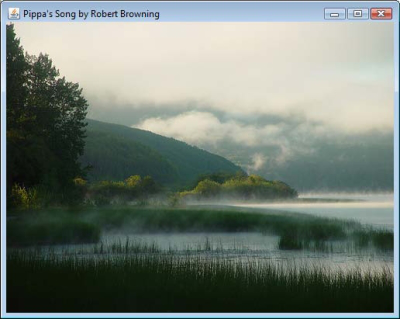
Figure 1: A JavaFX Stage containing an image loaded from the network
Displaying Text with Effects
Displaying text in JavaFX is as simple as instantiating a Text Node and setting the content to a String. There are many variables available on Text, but for this example we will set the font, fill color, and also add a Drop Shadow effect to make the text stand out on the background.
1 Creative Commons Attribution 2.0 License: http://creativecommons.org/licenses/by/2.0/
2 Duane Conlon’s Photostream: http://www.flickr.com/photos/duaneconlon/
Notice that rather than specifying the whole poem text on one line we have split it across several lines, which will automatically get concatenated. Also, we have used the bind operator to set both the font size and y offset, which will update their values automatically when the scene height changes. Figure 2 shows the updated example with text overlaid on the Image.
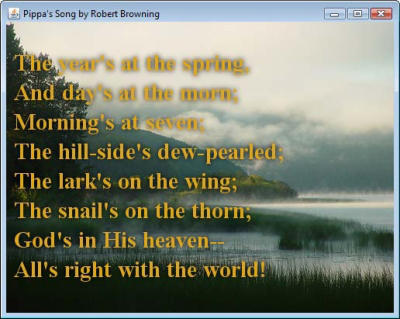
Figure 2: Updated example with a Text overlay
JavaFX offers a large set of graphics effects that you can easily apply to Nodes to create rich visual effects. Table 1 lists all the available effects you can choose from.
Table 1. Graphics effects available in JavaFX
| Effect |
Description |
| Blend |
Blends two inputs together using a pre-defined BlendMode |
| Bloom |
Makes brighter portions of the Node appear to glow |
| BoxBlur |
Fast blur with a configurable quality threshold |
| ColorAdjust |
Per-pixel adjustments of hue, saturation, brightness, and contrast |
| DisplacementMap |
Shifts each pixel by the amount specified in a DisplacementMap |
| DropShadow |
Displays an offset shadow underneath the node |
| Flood |
Fills a rectangular region with the given Color |
| GaussianBlur |
Blurs the Node with a configurable radius |
| Glow |
Makes the Node appear to glow with a given intensity level |
| Identity |
Passes an image through to a chained effect |
| InnerShadow |
Draws a shadow on the inner edges of the Node |
| InvertMask |
Returns a mask that is the inverse of the input |
| Lighting |
Simulates a light source to give Nodes a 3D effect |
| MotionBlur |
Blurs the image at a given angle to create a motion effect |
| PerspectiveTransform |
Maps a Node to an arbitrary quadrilateral for a perspective effect |
| Reflection |
Displays an inverted view of the Node to create a reflected effect |
| SepiaTone |
Creates a sepia tone effect to mimic aged photographs |
| Shadow |
Similar to a DropShadow, but without the overlaid image |
Animated Transitions
Animations in JavaFX can be accomplished either by setting up a Timeline from scratch, or using one of the pre-fabricated Transitions. To animate the Text rising onto the screen, we will use a TranslateTransition, which adjusts the position of a Node in a straight line for the specified duration:
By setting an interpolator of EASEOUT, the text will start at full speed and gradually deaccelerate as it approaches its destination. Animations and Transitions can also be configured to repeat, run at a specific rate, or reverse. To run the transition, all you need to do is call the play() function, which will animate the text as shown in Figure 3.
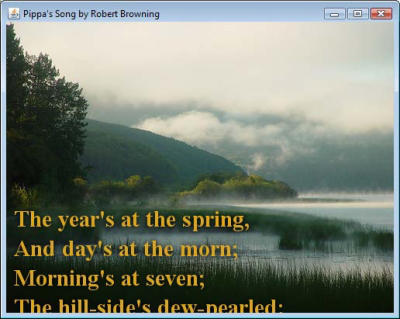
Figure 3: Animated Text Scrolling Into View
Table 2 lists all of the available transitions that are part of the JavaFX API. To get a feel for how the different transitions work, try adding a FadeTransition that will gradually fade the background in over a 5 second duration.
Table 2. Transitions Supported by JavaFX
| Transition |
Description |
| FadeTransition |
Changes the opacity of a node over time |
| ParallelTransition |
Plays a sequence of transitions in parallel |
| PathTransition |
Animates nodes along a Shape or Path |
| PauseTransition |
Executes an action after the specified delay |
| RotateTransition |
Changes the rotation of a node over time |
| ScaleTransition |
Changes the size of a node over time |
| SequentialTransition |
Plays a sequence of transitions in series |
| TranslateTransition |
Changes the position of a node over time |
Interacting with Controls
The JavaFX 1.2 release features a new library of skinnable controls written in pure JavaFX. Table 3 lists some of the new controls and what they can be used for.
Table 3. Controls Available in JavaFX 1.2
| Control |
Description |
| Button |
Button that can contain graphics and text |
| CheckBox |
Selectable box that can be checked, unchecked, or undefined |
| Hyperlink |
HTML-like clickable text link |
| Label |
Text that can be associated with anther control |
| ListView |
Scrollable list that can contain text or Nodes |
| ProgressBar |
Progress bar that can show percentage complete or be indeterminate |
| RadioButton |
Selectable button that can belong to a group |
| ScrollBar |
Scroll control typically used for paging |
| Slider |
Draggable selector of a number or percent |
| TextBox |
Text input control |
The simplest control to use is a Button, which can easily be scripted to play the animation sequence again from the beginning.
Ths bind operator is used to both hide the button while the animation is playing and also center the button in the window. Initially the button is invisible, but we added a new SequentialTransition that plays a FadeTransition to show the button after the translation is complete. Clicking the button shown in Figure 4 will hide it and play the animation from the beginning.
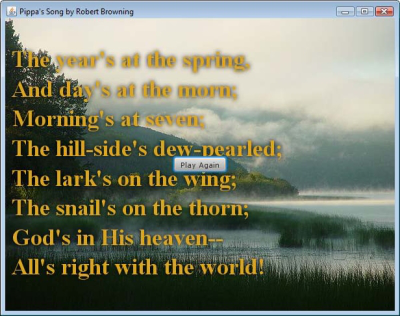
Figure 4: Button Control to Play the Animation Again
Panning with Layouts
JavaFX 1.2 comes with several new layouts that make it easy to design complex UIs. One of these is the ClipView, which we will use to support dragging of the poem text. ClipView takes a single Node as the input and allows the content to be panned using the mouse:
To ensue the ClipView takes the full window, its width and height are bound to the scene. Also, we have overridden the maxClipX variable with a value of 0 to restrict panning to the vertical direction. The text can now be dragged using the mouse as shown in Figure 5.
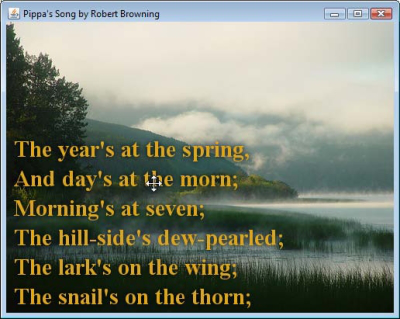
Figure 5: Panning the Text using a ClipView
Table 4 lists all of the available layouts that come JavaFX comes with. HBox and VBox have been around since the 1.0 release, but all the other layouts are new in JavaFX 1.2.
Table 4. Layouts Available in JavaFX 1.2
| Layout |
Description |
| HBox |
Lays out its contents in a single, horizontal row |
| VBox |
Lays out its contents in a single, vertical column |
| ClipView |
Clips its content Node to the bounds, optionally allowing panning |
| Flow |
Lays out its contents either vertically or horizontally with wrapping |
| Stack |
Layers its contents on top of each other from back to front |
| Tile |
Arranges its contents in a grid of evenly sized tiles |
Finishing with Media
JavaFX has built-in media classes that make it very simple to play audio or video either from the local files or streaming off the network. To complete the example we will add in a public domain clip of Indigo Bunting birds chirping in the background. Adding in the audio is as simple as appending a MediaPlayer with autoPlay set to true that contains a Media object pointing to the URL.
In this example we are using an mp3 file, which is supported across platforms by JavaFX. Table 5 lists some of the common media formats supported by JavaFX, including all the crossplatform formats.
Table 5. Common Media Formats Supported by JavaFX
| Type |
Platform |
Format |
File Extension |
| Audio |
Cross-platform |
MPEG-1 Audio Layer 3 |
mp3 |
| Audio |
Cross-platform |
Waveform Audio Format |
wav |
| Audio |
Macintosh |
Advanced Audio Coding |
m4a, aac |
| Audio |
Macintosh |
Audio Interchange File Format |
aif, aiff |
| Video |
Platform |
Format |
File Extension |
| Video |
Cross-platform |
Flash Video |
flv, f4v |
| Video |
Cross-platform |
JavaFX Multimedia |
fxm |
| Video |
Windows |
Windows Media Video |
wmv, avi |
| Video |
Macintosh |
QuickTime |
mov |
| Video |
Macintosh |
MPEG-4 |
mp4 |
To try the completed example complete with animation and audio, you can click on the following url:
http://jfxtras.org/samples/jfxpoetry/JFXPoetry.jnlp
The full source code for this application is available on the JFXtras Samples website: http://jfxtras.org/portal/samples
Running on Mobile
To run the sample in the Mobile Emulator all you have to do is pass in the MOBILE profile to the javafxpackager program or switch the run mode in your IDE project properties. JavaFX Mobile applications are restricted to the Common Profile, which does not include all the features of desktop applications. The full list of restrictions is shown in Table 5.
Table 5. Functionality Not Available in the Common Profile
| Class(es) |
Affected Variables and Methods |
| javafx.ext.swing.* |
All |
| javafx.reflect.* |
All |
| javafx.scene.Node |
effect, style |
| javafx.scene.Scene |
stylesheets |
| javafx.scene.effect.* |
All |
| javafx.scene.effect.light.* |
All |
| javafx.scene.shape.ShapeIntersect |
All |
| javafx.scene.shape.ShapeSubtract |
All |
| javafx.scene.text.Font |
autoKern, embolden, letterSpacing, ligatures, oblique, position |
| javafx.stage.AppletStageExtension |
All |
| javafx.util.FXEvaluator |
All |
| javafx.util.StringLocalizer |
All |
Over 80% of the JavaFX API is represented in the Common Profile, so it is not hard to build applications that are portable. In this example we used a DropShadow on the text that, once removed, will let us run the example in the Mobile Emulator as shown in Figure 6.
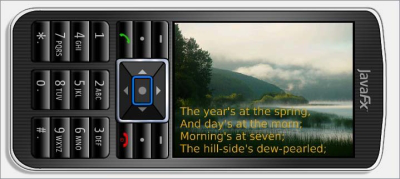
Figure 6: JFXPoetry application running in the Mobile Emulator
Running as a Desktop Widget
You can deploy your application as a desktop widget using the WidgetFX open-source framework. Any JavaFX application can be converted to a widget by including the WidgetFX-API.jar and making some small updates to the code.
The Following code fragment highlights the code changes required:
The updates to the code include the following three changes:
- Wrap your application in a Widget class. The Widget class extends javafx.scene.layout.Panel, which makes it easy to extend.
- Set the initial widget width/height and modify references from scene to widget.
- Return the widget at the end of the script.
To run the widget, simply change your project properties to run the application using Web Start Excecution. This will automatically create a JNLP file compatible with WidgetFX and launch the Widget Runner, which allows you to test your widget as shown in the Figure 7.
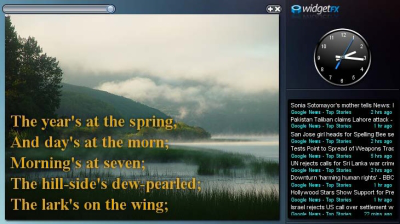
Figure 7: JFXPoetry running as a desktop widget
For more information about WidgetFX, including SDK download, documentation, and additional tutorials, check out the project website:http://widgetfx.org/