Getting Started with Java GUI Development
By James Sugrue
39,199 Downloads · Refcard 95 of 185 (see them all)
Download
FREE PDF
The Essential Java GUI Cheat Sheet
Getting Started with Java GUI Development
ABOUT JAVA GUI DEVELOPMENT
For standalone Java desktop application, developers have two main options. You can use Java Swing, built into the JDK, or you can use the Standard Widget Toolkit (SWT) from Eclipse. Both approaches share some commonality, but each has its own advantages and methods. This DZone Refcard provides a reference on how to use both technologies; the first half of the Refcard will cover Swing, with SWT forming the second half.
JAVA SWING - A HISTORY
Before Swing, the only option that Java GUI developers had was to use AWT (Abstract Widget Toolkit). However, because of limitations in AWT, such as the number of components and portability issues, Sun introduced Swing. Swing is built on AWT components, and also uses its event model. While AWT provides heavyweight components, Swing provides lightweight components and adds advanced controls such as tables because it does not require the use of native resources within the operating system.
CORE PACKAGES
| Package | Purpose |
| javax.swing | Provides a set of “lightweight” (all-Java language) components that, to the maximum degree possible, work the same on all platforms. |
| javax.swing.border | Provides classes and interface for drawing specialized borders around a Swing component. |
| javax.swing.colorchooser | Contains classes and interfaces used by the JColorChooser component. |
| avax.swing.event | Provides for events fired by Swing components. |
| javax.swing.filechooser | Contains classes and interfaces used by the JFileChooser component. |
| javax.swing.plaf.basic | Provides user interface objects built according to the Basic look and feel. |
| javax.swing.plaf.metal | Provides user interface objects built according to the Java look and feel (once codenamed Metal), which is the default look and feel. |
| javax.swing.plaf.multi | Provides user interface objects that combine two or more look and feels. |
| javax.swing.plaf.synth | Synth is a skinnable look and feel in which all painting is delegated. |
| javax.swing.table | Provides classes and interfaces for dealing with javax.swing.JTable. |
| javax.swing.text | Provides classes and interfaces that deal with editable and noneditable text components. |
| javax.swing.text.html | Provides the class HTMLEditorKit and supporting classes for creating HTML text editors. |
| javax.swing.text.html.parser | Provides the default HTML parser, along with support classes. |
| javax.swing.text.rtf | Provides a class (RTFEditorKit) for creating Rich-Text-Format text editors. |
| javax.swing.tree | Provides classes and interfaces for dealing with javax.swing.JTree. |
| javax.swing.undo | Allows developers to provide support for undo/redo in applications such as text editors. |

Model View Controller
Swing relies a lot on the MVC structure, where a component consists of a data model, a visual representation and a controller for event handling.THE ANATOMY OF A SWING APPLICATION
All Swing components are derived from JComponent, which deals with the pluggable look & feel, keystroke handling, action object, borders and accessibility.
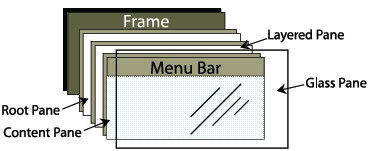
A typical Swing application will consist of a main window, with a menu-bar, toolbar and contents. The main shell for the application is represented as a JFrame. Within the JFrame, an instance of JRootPane acts as a container for all other components in the frame.

Figure 1: The structure of a JFrame
The root pane has four parts:
The glass pane
The glass pane is hidden by default. If it is made visible, then it’s like a sheet of glass over all the other parts of the root pane. It’s completely transparent unless you implement the glass pane’s paintComponent method so that it does something, and it can intercept input events for the root pane.
The layered pane
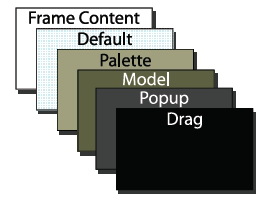
The layered pane positions its contents, which consist of the content pane and the optional menu bar. Can also hold other components in a specified Z order, as illustrated in Figure 2.
The content pane
The content pane is the container of the root pane’s visible components, excluding the menu bar.
The optional menu bar
If the container has a menu bar, you generally use the container’s setJMenuBar method to put the menu bar in the appropriate place.

Figure 2: Layer order in layered pane
SWING COMPONENTS - CONTAINERS
javax.swing.JFrame
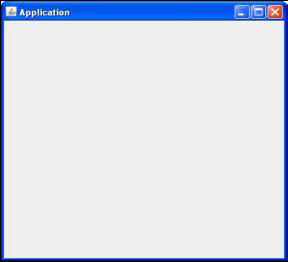
JFrame is the main window component of any Swing application. To create an application window, you just need to create a class that extends JFrame.
public class SwingApp extends JFrame
{
public SwingApp(String title)
{
super(title);
setSize(400, 400);
}
}

Figure 3: A Swing JFrame
javax.swing.JApplet
JApplet allows the addition of menus and toolbars to applets hosted in a browser. Since Java 6 Update 10, applets can also be dragged outside of the browser to run on the desktop.
Construction code for applets go into the init() method, rather than the applets constructor.
public class SwingApplet extends JApplet {
public SwingApplet()
{}
public void init()
{
setSize(100, 100);
}
}
OTHER SWING CONTAINERS
| Container | Purpose |
| javax.swing.JDialog | Creates a custom dialog, either modal or modeless. JOptionPane can be used to create standard dialogs. |
| javax.swing.JPanel | JPanel is a generic lightweight container used to group components together and add to other windows such as JFrames. |
| javax.swing.JSrollPane | Provides a scrollable view of another lightweight component. The JScrollPane provides a viewport with optional scrollbars at veritical and horizontal positions. |
| javax.swing.JSplitPane | Displays two components either side by side (JSplitPane.HORIZONTAL_SPLIT), or one on top of the other (JSplitPane.VERTICAL_SPLIT). |
| javax.swing.JInteralFrame | Provides many of the features of a native frame, including dragging, closing, becoming an icon, resizing, title display, and support for a menu bar, allowing Swing applications to take on a multiple document interface. |
| javax.swing.JLayeredFrame | Adds depth to a Swing container, allowing components to overlap each other when needed. For convenience, JLayeredPane divides the depth-range into several different layers. Layers available include DEFAULT_LAYER, PALETTE_LAYER, MODAL_LAYER, POPUP_LAYER, DRAG_LAYER. |
SWING COMPONENTS - BASIC CONTROLS
| Components | Appearance (for Windows XP default Look & Feel) |
| javax.swing.JButton | |
| javax.swing.JCheckBox | |
| javax.swing.JComboBox | ![]() |
| javax.swing.JList | ![]() |
| javax.swing.JMenu | |
| javax.swing.JRadioButton | |
| javax.swing.JSlider | |
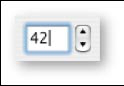
| javax.swing.JSpinner | |
| javax.swing.JTextField | |
| javax.swing.JToolbar | |
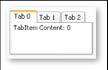
| javax.swing.JTabbedPane | ![]() |
| javax.swing.JPasswordField | |
| javax.swing.JColorChooser | ![]() |
| javax.swing.JEditorPane | ![]() |
| javax.swing.JTextPane | |
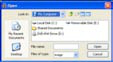
| javax.swing.JFileChooser | ![]() |
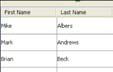
| javax.swing.JTable | ![]() |
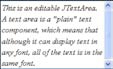
| javax.swing.JTextArea | ![]() |
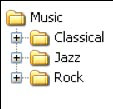
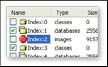
| javax.swing.JTree | ![]() |

CORE LAYOUT MANAGERS
All layout managers implement one of two interfaces: java. awt.LayoutManager or its subclass, java.awt.LayoutManager2. LayoutManager provides methods that give a straight-forward, organized means of managing component positions and sizes in a container. LayoutManager2 enhances this by adding methods intended to aid in managing component positions and sizes using constraints-based objects. Constraints-based objects store position and sizing information about one component and implementations of LayoutManager2 normally store one constraints-based object per component.
java.awt.FlowLayout
A flow layout arranges components in a directional flow one after the other, moving onto a new line when no more components fit on the current line. Direction is determined by the container’s componentOrientation property and may be one of two values: ComponentOrientation.LEFT_TO_RIGHT or ComponentOrientation.RIGHT_TO_LEFT
Flow layout is the default layout manager for AWT and
Swing components.
java.awt.GridLayout
GridLayout lays out a container’s components in a rectangular grid. The container is divided into equal-sized rectangles, and one component is placed in each rectangle. Typically, a GridLayout is constructed by specifying the number of rows and columns.
java.awt.BorderLayout
BorderLayout lays out the components in five regions: NORTH, SOUTH, EAST, WEST and CENTER. As each component is added to a container with a border layout, the location is specified similar to: container.add(component, BorderLayout.CENTER);
java.awt.CardLayout
CardLayout acts as an organisation of stacked components on a container, with only one card being visible at a time. The first component added is the visible component when the container is first displayed. Methods exist to go through the stack sequentially or to access a particular card.
javax.swing.BoxLayout
BoxLayout allows multiple components to be laid out vertically (Y_AXIS) or horizontally (X_AXIS). Components do not wrap, so when the frame is resized the components remain in their initial arrangement. Components are arranged in the order that they are added to the layout manager.
java.awt.GridBagLayout
GridBagLayout is the most flexible layout manager, maintaining a dynamic, rectangular grid of cells. Each component can occupy one or more cells, and has an instance of GridBagConstraints to specify how a component should be displayed in its display area.
The following table illustrates the options in GridBagConstraints:
| Variable Name | Use |
| gridx, gridy | Specifies the location on the grid to place the component, with gridx=0, gridy=0 as the top left hand corner. |
| gridwidth, gridheight |
Specifies the number of rows, or columns that will be used for a components display area. The default value is 1. |
| fill | Used to specify how to fill any unused space in the grid cell. Options are NONE (default), HORIZONTAL, VERTICAL or BOTH. |
| ipadx, ipady | Specifies how many pixels to pad around the components minimum size in the x or y direction. |
| insets | Specifies how much should be added to the external padding of the component out to the edges of its display area. |
| anchor | Specifies where the component should be positioned in its display area. |
| weightx, weighty |
Determines how to distribute space around a component, for resizing behaviour. |
EVENT HANDLING
Standard click events on Swing components are handled using the java.awt.event.ActionListener interface. Implemented action handlers need to implement the public voidactionPerformed(ActionEvent e), provided the component has registered the action listener using the addActionListener() method.
Three interfaces are provided to handle mouse events on components:
| Interface | Methods |
| java.awt.event.MouseListener | public void mouseClicked(MouseEvent e); public void mousePressed(MouseEvent e); public void mouseReleased(MouseEvent e); public void mouseEntered(MouseEvent e); public void mouseExited(MouseEvent e); |
| java.awt.event.MouseWheelListener | public void mouseWheelMoved(MouseWheelEvent e); |
| java.awt.event.MouseMotionListener | public void mouseDragged(MouseEvent e) public void mouseMoved(MouseEvent e); |
Alternatively, you can extend the java.awt.event.MouseAdapter class, which packages all three interfaces into a single abstract class to make it easier to handle particular mouse events.
Attaching Mouse Listeners
Mouse listeners can be added to your component by simply using the appropriate method (addMouseListener, addMouseWheelListener, addMouseMotionListener).
THREADING ISSUES IN SWING
Time consuming tasks should not be run on the event dispatch thread, as this will cause the application to become unresponsive. Additionally, any components accessed should only be accessed through the event dispatch thread.
SwingWorker is designed for situations where you need to have a long running task run in a background thread and provide updates to the UI either when done, or while processing. Subclasses of SwingWorker must implement the doInBackground() method to perform background computation.
ECLIPSE STANDARD WIDGET TOOLKIT - A HISTORY
The Standard Widget Toolkit (SWT) is a widget toolkit that provides both a portable API and tight integration with the underlying native OS GUI platform. SWT defines a common API provided on all supported platforms, allowing the toolkit to take on the look & feel of the underlying native widgets. JFace provides a higher level abstraction over SWT, in a similar way to Swing and AWT. However, most controls are available in SWT, with JFace providing viewers and actions.
CORE PACKAGES
| package | Purpose |
| org.eclipse.swt | Provides the class SWT which contains all of the constants used by SWT as well as a small selection of error handling routines and queries such as getPlatform and getVersion. |
| org.eclipse.swt.accessibility | Contains the classes that support platform accessibility |
| org.eclipse.swt.awt | Contains the SWT_AWT bridge, allowing AWT components to be embedded in SWT components and vice versa. |
| org.eclipse.swt.browser | Provides the classes to implement the browser user interface metaphor. |
| org.eclipse.swt.custom | Contains the custom widgets which were written to provide the standard look and feel of the Eclipse platform. |
| org.eclipse.swt.dnd | Contains the classes which make up the public API of the SWT Drag and Drop support. |
| org.eclipse.swt.events | Provides the typed events and listener interfaces. |
| org.eclipse.swt.graphics | Provides the classes which implement points, rectangles, regions, colors, cursors, fonts, graphics contexts (that is, GCs) where most of the primitive drawing operations are implemented. |
| org.eclipse.swt.layout | Contains several standard layout classes which provide automated positioning and sizing support for SWT widgets. |
| org.eclipse.swt.opengl | Contains widgets for integrating OpenGL graphics into SWT applications. |
| org.eclipse.swt.printing | Contains the classes which provide printing support for SWT. |
| org.eclipse.swt.program | Contains class Program which provides access to facilities for discovering operating system specific aspects of external program launching. |
| org.eclipse.swt.widgets | Contains the classes which make up the public SWT widget API as well as the related public support classes. |
THE ANATOMY OF AN SWT APPLICATION
A stand-alone SWT application has the following structure:
- A Display which represents an SWT session.
- A Shell that serves as the main window for the application.
- Other widgets that are needed inside the shell.
In order to create a shell, you need to run the event dispatch loop continuously until an exit condition occurs, i.e. the shell is closed. Following this event the display must be disposed.
public static void main (String [] args) {
Display display = new Display ();
Shell shell = new Shell (display);
//create SWT widgets on the shell
shell.open ();
while (!shell.isDisposed ()) {
if (!display.readAndDispatch ()) display.sleep ();
}
display.dispose ();
}
The Display provides a connection between SWT and the platform’s GUI system. Displays are used to manage the event dispatch loop and also control communication between the UI thread and other threads.
The Shell is a “window” managed by the OS platform window manager. Top level shells are those that are created as a child of the display. These windows are the windows that users move, resize, minimize, and maximize while using the application. Secondary shells also exist, such as dialogs – these are created as the child of other shells.
Any widget that is not a top level shell must have a parent shell or composite. Composite widgets are widgets that can have children. In SWT the Shell is the root of a widget hierarchy.

SWT COMPONENTS - CONTAINERS
org.eclipse.swt.widgets.Shell
The Shell is the main window, and parent container of all other widgets in an SWT application.
org.eclipse.swt.widgets.Composite
The Composite is a widget that can contain other composites or controls, similar to a JPanel in Swing. Composite is the super class of all composites, and can also be used directly.
org.eclipse.swt.widgets.Dialog
SWT also provides a Dialog class, which should be modal with a Shell as its parent.
SWT COMPONENTS - BASIC CONTROLS
| Components | Appearance (various platforms) |
| org.eclipse.swt.browser.Browser | ![]() |
| org.eclipse.swt.widgets.Button | ![]() |
| org.eclipse.swt.widgets.Canvas | ![]() |
| org.eclipse.swt.widgets.Combo | |
| org.eclipse.swt.widgets.ColorDialog | ![]() |
| org.eclipse.swt.widgets.CoolBar | |
| org.eclipse.swt.custom.CTabFolder | |
| org.eclipse.swt.widgets.DateTime | ![]() |
| org.eclipse.swt.widgets.ExpandBar | ![]() |
| org.eclipse.swt.widgets.Group | ![]() |
| org.eclipse.swt.widgets.Label | ![]() |
| org.eclipse.swt.widgets.Link | |
| org.eclipse.swt.widgets.List | ![]() |
| org.eclipse.swt.widgets.Menu | ![]() |
| org.eclipse.swt.widgets.ProgressBar | |
| org.eclipse.swt.widgets.Slider | |
| org.eclipse.swt.widgets.Scale | |
| org.eclipse.swt.widgets.Spinner | ![]() |
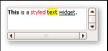
| org.eclipse.swt.custom.StyledText | ![]() |
| org.eclipse.swt.widgets.TabFolder | ![]() |
| org.eclipse.swt.widgets.Table | ![]() |
| org.eclipse.swt.widgets.Text | |
| org.eclipse.swt.widgets.ToolBar | |
| org.eclipse.swt.widgets.Tray | ![]() |
| org.eclipse.swt.widgets.Tree | ![]() |
CORE LAYOUT MANAGERS
Just as in Swing, SWT provides a number of core layout managers, as well as providing the opportunity to create your own custom layout from the org.eclipse.swt.layout.Layout base class.
org.eclipse.swt.layout.FillLayout
FillLayout lays all widgets in a single continuous row or column. All widgets are forced to be the same size in this layout. Unlike Swing’s FlowLayout, FillLayout does not wrap, but you can specify margins and spacing. FillLayout is useful when a Composite only has one child, as it can cause the child of the composite to fill the shell.
FillLayout fillLayout = new FillLayout(SWT.VERTICAL); shell.setLayout(fillLayout);
org.eclipse.swt.layout.RowLayout
RowLayout places components in horizontal rows or vertical columns within the parent Composite. Unlike FillLayout, RowLayout allows components to wrap and also provides margins and spacing. Rather than all components being the same size, each control can have its own parameters using the RowData object. A control can use this object through its setLayoutData method.
org.eclipse.swt.layout.GridLayout
The most flexible layout manager in SWT is GridLayout, which lays components out in a grid formation. Each control that is placedin a composite using this layout can have an associated GridData object which configures the control. A control can use a GridData object through it’s setLayoutData method.
Note: GridData objects should not be reused between widgets, as it must be unique for each widget.
A grid can have a number of columns associated with it. As widgets are added they are laid out in the columns from left to right. A new row is created when the previous row has been filled. The following table illustrates the options in GridData:
| Variable Name | Use |
| horizontalAlignment, verticalAlignment |
Specifies the location on the grid to place the component, with gridx=0, gridy=0 as the top left hand corner. |
| grabExcessHorizontalSpace, grabExcessVerticalSpace |
Specifies whether the width or height of the widget will change depending on the size of the parent composite. |
| horizontalIndent, verticalIndent |
The number of pixels to move in from the left or the top of the cell. |
| horizontalSpan, verticalSpan | The number of rows or columns that the widget will occupy. |
| heightHint, widthHint | The preferred height or width of this widget. |
| minimumHeight, minimumWidth | The minimum height or width of the widget. |
| exclude | Informs the layout manager to ignore this widget when sizing and positioning controls |
org.eclipse.swt.layout.FormLayout
FormLayout positions children of a composite control by using FormAttachments to optionally configure the left, top, right and bottom edges of each child. Each child of a composite using FormLayout needs to have a FormData object with a FormAttachment.
Each side of a child control can be attached to a position in the parent composite, or to other controls within the Composite by creating instances of FormAttachment and setting them into the top, bottom, left, and right fields of the child’s FormData. If a side is not given an attachment, it is defined as not being attached to anything, causing the child to remain at its preferred size.
If a child is given no attachment on either the left or the right or top or bottom, it is automatically attached to the left and top of the composite respectively.

EVENT HANDLING
SWT provides two ways of handling events: using the built in typed listeners, or using un-typed listeners which provides a framework for you to create your own listeners.
Un-typed Listeners
Creating un-typed listeners in SWT involves three classes from the org.eclipse.swt.widgets package:
| Event | This class provides a description of the event that has been triggered, including fields for type, widget and time |
| Listener | The listener interface needs to be implemented by any class that listens for events. The interface simply defines a handleEvent(Event e) method in order to do this. |
| Widget | Each widget object has an addListener(int eventType, Listener handler) method with a corresponding removeListener method. |
The addListener method accepts an eventType method. The following table lists out the possible values for this field:
| Event Type | Description |
| SWT.Activate, SWT.Deactivate | Control is activated or deactivated. |
| SWT.Arm | The mouse pointer hovers the MenuItem |
| SWT.Close | A Shell is about to close |
| SWT.DefaultSelection | The user selects an item by invoking a default selection action. |
| SWT.Dispose | A widget is about to be disposed. |
| SWT.DragDetect | The user has initiated a possible drag operation. |
| SWT.EraseItem | A TableItem or TreeItem is about to have its background drawn. |
| SWT.Expand, SWT.Collapse | An item in a Tree is expanded or collapsed. |
| SWT.Help | The user has requested help for a widget. |
| SWT.Iconify, SWT.Deiconify | A Shell has been minimized, maximized, or restored. |
| SWT.ImeComposition | Allows custom text editors to implement in-line editing of international text. |
| SWT.MeasureItem | The size of a custom drawn TableItem or TreeItem is being requested. |
| SWT.MenuDetect | The user has requested a context menu. |
| SWT.Modify | The widget’s text has been modified. |
| SWT.Move, SWT.Resize | A control has changed position or has been resized, either programmatically or by user. |
| SWT.Movement | An updated caret offset is needed in response to a user action in a StyledText. |
| SWT.PaintItem | A TableItem or TreeItem is about to have its foreground drawn. |
| SWT.Selection | The user selects an item in the control. |
| SWT.SetData | Data needs to be set on a TableItem when using a virtual table. |
| SWT.Settings | An operating system property, such as a system font or color, has been changed. |
| SWT.Show, SWT.Hide | A control’s visibility has changed. |
| SWT.Traverse | The user is trying to traverse out of the control using a keystroke. |
| SWT.Verify | A widget’s text is about to be modified. |
| SWT.FocusIn, SWT.FocusOut |
A control has gained or lost focus. |
| SWT.KeyDown, SWT.KeyUp | The user has pressed or released a keyboard key when the control has keyboard focus. |
| SWT.MouseDown, SWT.MouseUp, SWT.MouseDoubleClick |
The user has pressed, released, or double-clicked the mouse over the control. |
| SWT.MouseMove | The user has moved the mouse above the control. |
| SWT.MouseEnter, SWT.MouseExit, SWT.MouseHover |
The mouse has entered, exited, or hovered over the control. |
| SWT.MouseWheel | The mouse wheel has been rotated. |
| SWT.Paint | Control has been damaged and requires repainting. |
THREADING IN SWT
In order to keep the UI as responsive as possible, any long running operations triggered by a UI event should be run in a separate thread. The application program runs the event loop in its main thread and dispatches events directly from this thread. The UI thread is the thread in which the Display was created. All other widgets must be created in the UI thread.

Applications that wish to call UI code from a non-UI thread must provide a Runnable that calls the UI code. The methods syncExec(Runnable) and asyncExec(Runnable) in the Display class are used to execute these runnables in the UI thread during the event loop.
- syncExec(Runnable)should be used when the application code in the non-UI thread depends on the return value from the UI code or otherwise needs to ensure that the runnable is run to completion before returning to the thread. SWT will block the calling thread until the runnable has been run from the application’s UI thread.
- asyncExec(Runnable) should be used when the application needs to perform some UI operations, but is not dependent upon the operations being completed before continuing.


Comments
Bandy King replied on Tue, 2010/05/18 - 4:58am
Getting Started with C Sharp
Pascal Fares replied on Thu, 2010/06/03 - 5:07pm