


Platforms & Tools
Windows® Phone 7 is a new platform bringing together developers from the .NET, Silverlight, and XNA eco-systems. This document combines reference information and tips for developing and publishing a Silverlight application for the platform using Visual Studio.
Hardware Specification
All initially launched Windows Phone 7 devices come with: the same operating system; the same minimum set of builtin applications and platform capabilities; and the ability to run Silverlight and XNA applications. Additionally, all devices come with the following hardware capabilities:
- 480x800 display
- DirectX 9 hardware acceleration
- Capacitive 4-point multi-touch
- Back, Start & Search hardware buttons (as well as a power, camera and volume button)
- A-GPS, accelerometer, compass*, light*, proximity*
- 5 MP+ digital camera with flash
- 256MB+ RAM
- 8GB+ flash storage
- * not accesible from .NET API in initial release
Hardware manufacturers may differentiate their devices by items such as: having higher RAM, flash storage or camera mega-pixels; having different screen sizes (but same resolution); adding a slide-out keyboard (horizontal or vertical); adding a single additional theme accent color; bundling additional built-in applications—but not removing/ replacing built-in applications/UI.
 Flash storage space should be considered as opaque file system storage; it is not removable portable storage for transferring files. It can be extended in some devices with an additional card, but that requires a ‘factory reset’ of the device to wipie existing data.
Developer Tools
The developer tools for Windows Phone 7 are available for free. Go to http://go.microsoft.com/fwlink/?LinkID=189554 for the RTW (‘Released to the Web’) tools or go to http://create.msdn.com to find the latest set.
The developer tools include the following items in one package:
- Visual Studio 2010 Express for Windows Phone*
- XNA Game Studio 4.0*
- Microsoft Expression Blend for Windows Phone*
- Windows Phone Emulator Resources
- Silverlight 4 Tools For Visual Studio
- *Items 1 & 2 will install as standalone applications if Visual Studio 2010 Professional or higher is not installed, otherwise they will install additional project templates in Visual Studio. The same goes for item 3 with regard to Expression Blend 4.
To install the RTW version of the tools, one of the following is required:
- Windows® Vista® (x86 and x64) with Service Pack 2–all editions except Starter Edition
- Windows® 7 (x86 and x64)–all editions except Starter Edition
Be sure to check out the release notes for full requirements. http://go.microsoft.com/fwlink/?LinkID=190374
 Before installing the RTW version of the tools, be sure to uninstall any pre-release version of the toolset in one step by uninstalling the item named, “Microsoft Windows Phone Developer Tools...” under Control Panel.
Silverlight Application Platform
The Windows Phone 7 platform can run applications based on Silverlight and XNA.
Silverlight is often the preferred choice for applications built with controls and events, similar to WinForms or WebForms. XNA is typically used for higher performance UI hardware rendering in 2D and 3D.
 Silverlight applications can use non-rendering classes provided by the XNA framework (e.g. for playing overlapping sounds or accessing microphone audio) and vice-versa. For choosing a development stack and calling across frameworks, see < href="http://msdn.microsoft.com/enus/ library/ff402528(v=VS.92).aspx">http://msdn.microsoft.com/enus/ library/ff402528(v=VS.92).aspx.
Silverlight applications run directly on the Windows Phone platform in a mode similar to the out-of-browser capability of Silverlight 3+ on the desktop. They do not run in a browser. In fact, Silverlight content on Web pages will not appear in the phone’s Web browser, but there is a WebBrowser control to host HTML content (from the Web, injected, or from local storage) inside a Silverlight application.
The RTW Silverlight platform is based largely on Silverlight 3.
A notable Silverlight 3 feature that is missing is TCP socket network access. A notable Silverlight 4 feature that is included is multi-touch manipulation events and offline DRM.
For general information on Silverlight support on the phone, see the MSDN library section: http://msdn.microsoft.com/en-us/library/ff426934(v=VS.95).aspx
 To see the extent to which a specific Silverlight class is supported on Windows Phone, check out any of the class pages within the namespace under .NET Class library for Silverlight (http://msdn.microsoft.com/en-us/library/ cc838194(v=vs.95).aspx) and look for the symbol next to class members.
The phone platform includes a set of classes specific to Windows Phone: <"http://msdn.microsoft.com/en-us/library/ ff626516(v=VS.92).aspx.">http://msdn.microsoft.com/en-us/library/ff626516(v=VS.92).aspx.
 A ‘Hub’ is an application that typically starts with a Panorama or Pivot control and that generally brings together content and data under a single area of concern (e.g., People).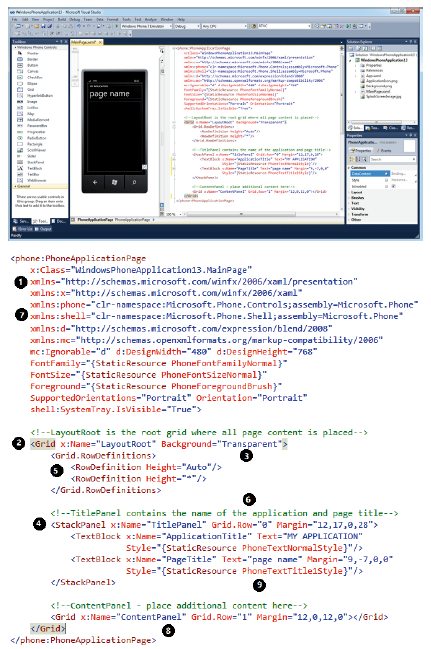
 Adhering to the MVVM design pattern can maximize XAML and minimize UI code, increasing designer-developer workflow productivity and creating more maintainable code layers (from separation of concerns).
 Microsoft is also releasing other controls out-of-band from (and likely more frequently than) developer tools updates, in the Silverlight for Windows Phone Toolkit on Codeplex:
  Try customizing controls by providing XAML for ‘Template’ properties. For custom child layout, derive a class from the Panel class and override the MeasureOverride() and ArrangeOverride() methods.
 The emulator can take advantage of hardware virtualization if turned on in the PC BIOS as well as the PC’s GPU - <"http://msdn.microsoft.com/en-us/library/ ff402567(v=VS.92).aspx">http://msdn.microsoft.com/en-us/library/ ff402567(v=VS.92).aspx.
 Use mock classes or the Reactive extensions for .NET (<"http://msdn.microsoft.com/en-us/library/ ff431792(v=VS.92).aspx">http://msdn.microsoft.com/en-us/library/ ff431792(v=VS.92).aspx) to simulate streams of data from hardware that is not emulated.
 To take 480x800 snapshots of the emulator for use in marketplace application submissions, on Windows 7, use the Snipping Tool, select New -> Windows Snip and click on the emulator screen.
 The Zune software locks the media library on the phone. To debug an application that accesses the media library instead, use WPConnect.exe in the Windows Phone Developer Tools 2010 Update.
 If the user launches another instance of the same application, any previously launched instance (and any tombstone information – see later) is effectively removed from the stack.
 Check marketplace submission requirements before overriding the Back button. To avoid complex parameter passing and to keep data ‘alive’ between pages, store data against the application or RootFrame DataContext, and for collections, pass an index parameter.
 Some asynchronous activities provide results on a different thread. If the application needs to directly modify the UI on receipt of data, use Dispatcher.BeginInvoke() to do it on the UI thread.
 Use binding converters (classes based on IValueConverter) along with a resource declaration to provide for bindings between data object properties and UI object properties of different types or values (e.g., set a color based on a value). Use d:DataContext in XAML to set up design-time data in Visual Studio to preview sample data in the UI.
 Isolated storage is best used for local settings, caching data, offline sync queues and data entry/activity in progress in some cases.
 To prevent the lock screen from engaging due to user inactivity, set PhoneApplicationService.Current. UserIdleDetectionMode = IdleDetectionMode.Disabled. To allow an application to run under the lock screen set PhoneApplicationService.Current. ApplicationIdleDetectionMode = IdleDetectionMode. Disabled (which has an associated marketplace submission requirement). Be careful not to drain the battery.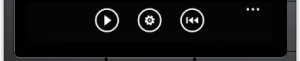
 Expression Blend makes it easy to add icons to App Bar Buttons from the built-in resources.
 Use the GestureListener in the Silverlight for Windows Phone toolkit to easily add a handler for Tap, Double Tap, Drag, Flick, Hold, and Pinch/Zoom gestures on part of the UI.
 Use dynamic built-in theme resources to make sure UI colors work correctly for any theme. Note that a device manufacturer can add an 11th unknown color that the user can choose.
{{ parent.title || parent.header.title}}
{{ parent.tldr }}
{{ parent.linkDescription }}
{{ parent.urlSource.name }}